
Install Ollama
Install the local model runtime and verify that the service is available.
curl -fsSL https://ollama.com/install.sh | sh
ollama --versionSunni is the desktop workspace. Open WebUI provides the browser interface, Ollama runs the local models, and the model you choose determines much of the assistant's actual capability. This guide walks through that chain from installation to model swapping, tuning and practical testing.

When something fails, knowing which layer owns the problem saves a great deal of unnecessary surgery.
Sunni does not contain an AI model. The current 2.0.x application expects
a local web interface at http://localhost:8080, with Ollama
providing the model runtime behind it.
Install the local model runtime and verify that the service is available.
curl -fsSL https://ollama.com/install.sh | sh
ollama --version
Ollama normally listens locally on port 11434. Confirm
that the service is running before involving the web interface.
ss -ltnp | grep 11434
ollama list
If ollama list works, the runtime itself is alive even if no models are installed yet.
Sunni 2.0.x embeds the local web interface served at
http://localhost:8080. If you already have the
ollama-webui snap installed, verify the service and port.
snap services ollama-webui
sudo ss -ltnp | grep 8080
The web interface is a separate component. Sunni can launch perfectly while still displaying nothing useful if port 8080 has no working UI behind it.
Once Open WebUI responds locally and Ollama has at least one model, launch Sunni and select that model inside the web interface.
./SunniSource installations may use the supplied launch script instead of a packaged binary.
Models are managed by Ollama, not packaged inside Sunni. You can install several models, keep them side by side, and change which one Open WebUI uses without rebuilding the Sunni application.
Open Settings inside the embedded Open WebUI and select Models. The Pull a model from Ollama.ai field lets you download another Ollama model directly from the interface. Enter the Ollama model name, then click the green download button.
qwen3-coder:30b.ollama pull qwen3-coder:30b
ollama listThe GUI and terminal routes manage the same Ollama model library. Use whichever workflow is more convenient.
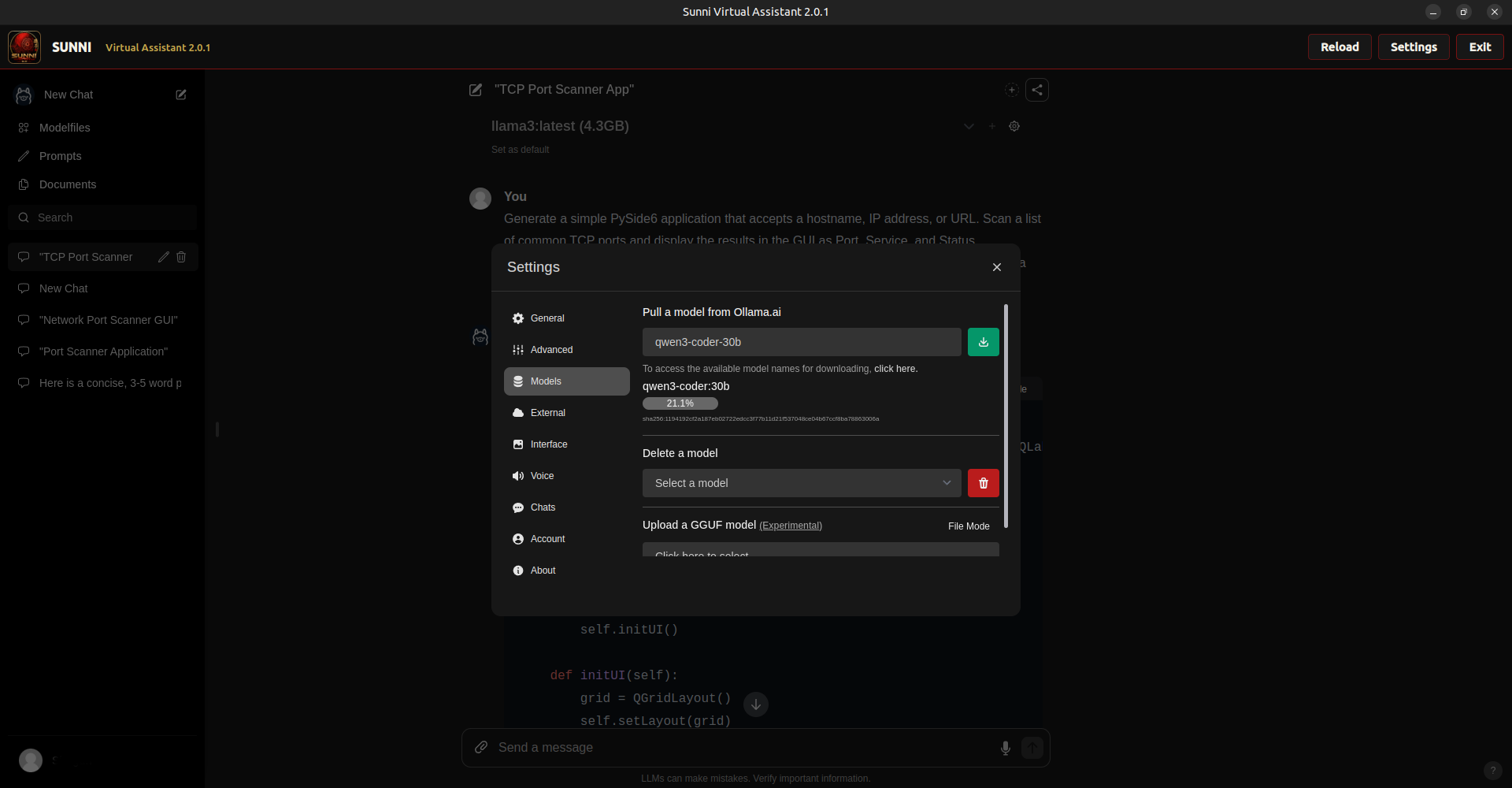
qwen3-coder:30b from Open WebUI inside Sunni.
Displayed at 50% of the original 1920 × 1000 screenshot. Click to enlarge.
ollama listThis is the quickest terminal check for models currently available to the local Ollama runtime. Models installed through Open WebUI should appear here as well.
ollama run qwen3-coder:30bDirect CLI testing removes Sunni and Open WebUI from the response path. If the model streams quickly here but feels slow in the web interface, the model itself may not be the bottleneck.
Open a chat in Sunni and use Open WebUI's model selector to choose any installed model. The model can change from conversation to conversation without changing or rebuilding the Sunni desktop application.
Keep the System Prompt, model parameters and test prompt unchanged while switching only the model. This isolates the model as the variable and makes differences in speed, code quality and debugging behavior easier to judge.
During Sunni testing, qwen3-coder:30b proved substantially more code-oriented than llama3:latest. Its first pass was not flawless, but it diagnosed and corrected a threading problem on the second pass instead of abandoning the debugging path. Treat this as a tested Sunni development observation, not a universal benchmark result.
Sunni embeds Open WebUI, so most model behavior is configured inside the Open WebUI Settings dialog rather than in the Sunni desktop shell itself. The interface separates general behavior, generation parameters, model management, external endpoints, interface preferences and account controls. Knowing which panel owns which setting makes configuration much less mysterious.
Open Settings inside Open WebUI. The current Sunni-compatible interface exposes General, Advanced, Models, External, Interface, Voice, Chats, Account and About. Most users will spend the majority of their time in General, Advanced and Models.
Use General for the everyday defaults that shape how Open WebUI starts a conversation. This is where you should confirm the default model and any global chat behavior before changing lower-level generation controls.
Advanced contains the generation controls that most directly affect response style, determinism, context usage and output length. This is where Sunni's development baseline belongs.
Change one parameter at a time when testing. If five sampling controls move at once, it becomes nearly impossible to know which one helped.
Models is the bridge between Open WebUI and Ollama's local model library. Use it to pull new models, remove models you no longer need, or upload a compatible GGUF model when the interface supports it.
The screenshot in the previous section shows this panel while
qwen3-coder:30b is being downloaded.
External is for connecting Open WebUI to services outside the default local Ollama workflow, including OpenAI-compatible API endpoints.
Interface settings control presentation and convenience rather than the model's intelligence. Use these for visual preferences and workflow polish without expecting them to change coding quality.
Voice settings control speech-related input and output features. They are optional for a development-focused Sunni setup and do not need to be configured for normal text chat, coding or debugging.
Chats controls conversation behavior and history-related preferences. Keep chat history available when you want the current conversation to preserve debugging context, but remember that conversation history is not the same thing as training the underlying model.
Account contains user-level settings. About is useful for identifying the installed Open WebUI build when troubleshooting compatibility, behavior or performance differences between systems.
Version information matters. Sunni's current stack may use an older Open WebUI build whose behavior differs from newer documentation.
Temperature, sampling controls, context length, max tokens and the System Prompt influence how the selected model behaves. They do not upgrade the model's underlying knowledge or reasoning ability.
If a coding model repeatedly misses imports, invents code that is not in the supplied file, or cannot repair its own runtime errors, changing to a stronger model may accomplish more than endlessly tuning sampling values.
ollama run <model-name>If the exact same model responds much faster in the terminal than through Sunni/Open WebUI, raw model generation is not the only bottleneck. The web frontend, streaming path or embedded browser rendering can also affect the perceived response rate.
These values were developed as a practical starting point for Sunni's software-development workload. They are not magic numbers. Different models can prefer different sampling settings, but this baseline keeps the model relatively focused and gives code generation enough room to finish complete files.
A System Prompt does not retrain the model. It gives the model persistent operating instructions: how Sunni should approach debugging, code generation, project safety, Linux, web development and communication.
The System Prompt can tell Sunni to inspect supplied code before guessing, preserve working behavior, return complete files, avoid placeholder code, verify explicit requirements and continue debugging after the first error.
A detailed System Prompt cannot manufacture knowledge or reasoning ability that the underlying model does not possess. If repeated failures remain after good conditioning, change the model instead of turning the prompt into a 40-page repair manual.
Be explicit about the outcome, not every implementation detail.
For example: “Accept hostname, IP or full URL. Display Port, Service and Status.
Keep the GUI responsive.” The model should decide whether that means
urlparse, QThread, sockets or another suitable implementation.
A model that looks brilliant on a polished demo can still collapse when it has to repair its own runtime error. Test generation and debugging as one workflow.
Keep the benchmark identical between models.
Generate a simple PySide6 application that accepts a hostname, IP address, or URL. Scan a list of common TCP ports and display the results in the GUI as Port, Service, and Status (OPEN/CLOSED). Use Python sockets. Keep the GUI responsive while scanning. Generate a complete runnable app.py.python3 app.pyJudge the result by behavior, not appearance. Does it launch? Does it accept every promised input type? Does the UI remain responsive? Does it display every requested field?
Paste the traceback and the complete current file. A useful coding model should inspect the code, identify the actual cause and continue repairing the same application instead of inventing nonexistent code or sending you on an unrelated scavenger hunt.
Measure first-pass correctness, response speed, debugging accuracy, persistence after failure and how many repair rounds are needed before the feature actually works.
Do not blame the entire stack when one component is coughing smoke.
Run the same model directly with ollama run <model-name>.
If CLI generation is substantially faster, the model is not the only
bottleneck. The web frontend, streaming path or browser rendering layer
may be adding delay.
Verify the chain in order:
snap services ollama-webui
sudo ss -ltnp | grep 8080
sudo ss -ltnp | grep 11434
ollama listSunni → Open WebUI → Ollama → Model. Stop at the first layer that does not work independently.
Treat generated code as a first implementation, not divine revelation. Run it, capture the exact failure and test whether the model can repair its own work. Debugging quality is often more valuable than a flashy first pass.
Add general engineering rules when a failure reveals a reusable lesson. Do not add application-specific instructions for every bug. If you have to teach the System Prompt how to implement every feature, the underlying model is probably the limiting factor.
Sunni stays the workspace. Ollama lets you change the model underneath it as your hardware, workload and expectations evolve.